.svg)
Table of Contents

Did you know you can automatically send SMS reminders to your clients for their appointments? You can get started in just 10 minutes by connecting the Zapier app with Octopush and your Google Calendar at no extra cost.
Zapier connects apps and moves information between them to automate your work. In this case, we will see how to set up a Zap (connection) that links your Google Calendar appointments to send automatic SMS reminders to your guests 1 day before the event starts.
Start reminding your clients today and never miss an appointment again!
How do you send automatic appointment reminders via SMS?
- Create your Octopush account ~2min
- Create your Zapier account ~40s
- Connect your Octopush account and Google Calendar with Zapier ~8min
Create your Octopush account ~2min
- Go to https://octopush.com
- Click on Sign up and enter your email, phone number, and complete the captcha.
- You will receive a confirmation email. Go to your email account and click the Validate your registrationbutton.
- In your Octopush account, go to Home and enter your account information. Fill in the fields and accept all the agreements found in the form. Then, click on Save.
- From Home, click on Validate phone line. Check that the number is correct and click the checkbox to certify that you are the owner of the phone line. Click on Validate my phone line.
- You will receive an SMS with a verification code on your phone. Enter this number into your Octopush account and click on Validate my phone line.
- You are now ready to set up your first campaign with your FREE SMS.
Create your Zapier account ~40 »
- Go to https://zapier.com
- Click Sign up and enter your email address and password to create your account.
Create a Zap between your Google Calendar and your Octopush account to send automated SMS to your clients 1 day before their scheduled appointments.
- Log in to your Zapier account at https://zapier.com/
- Create your workflow by selecting Google Calendar and Octopush SMS
- Next, select the actions you want Zapier to trigger: when Event Starts, then send New SMS.
- Let's set up the Event Startpart.
- Log in to your Google account (where the Google Calendar you want to connect is located) and grant Zapier access. Click Continue
- In Customize Event, select the calendar you want to connect (this is the calendar where you schedule your appointments), and set the time delay before your SMS reminders are sent.
- Click Continue. (Note: after this, you will be prompted to select an event from your calendar to test the zap at the end. Choose the test event to test the zap later, or Skip Test).
- Now let's set up the New SMSpart.
- Press Sign In to your Octopush account to grant Zapier access using your login and API key. You can find this information in your Octopush account menu under API & Plugins > API Credentials. Copy the login email and API key into the Zapier screen and click Yes, continue.
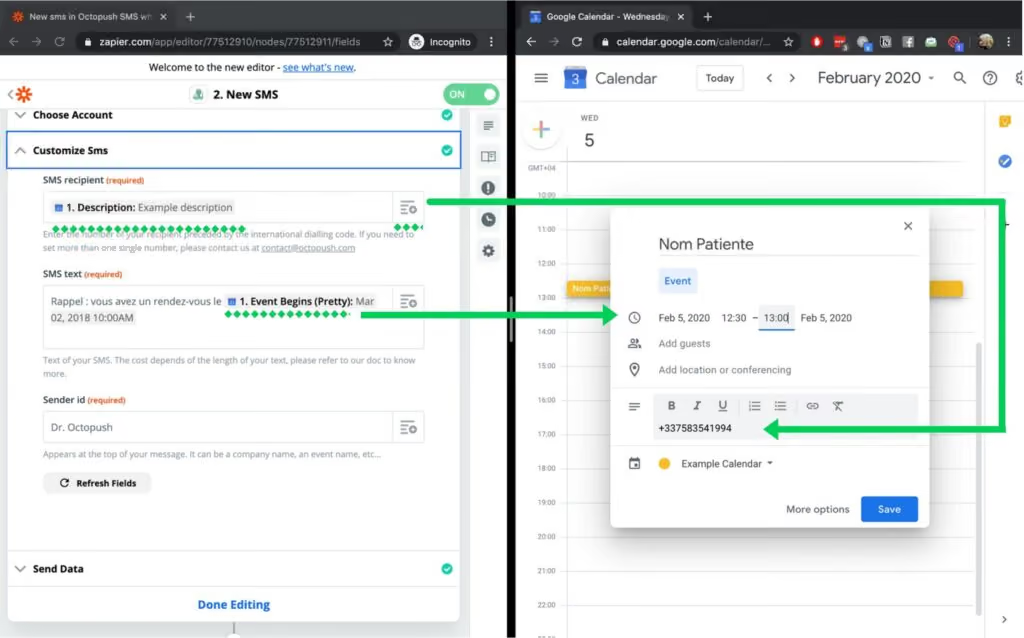
- To customize the SMS that our client will receive, we need to specify:
- SMS Recipient : where Zapier can retrieve your client's mobile phone number from Google Calendar. We will select Description and ensure we always fill in this field when scheduling an appointment (in the correct format, like this: +33758341677)
- SMS Text : here we will write the message to be sent to our clients. We can choose to include specific information to personalize our message, such as the client's name or the exact date and time of their appointment, by adding tags from the dropdown menu on the right. (Note that all of this changes based on the specific information we enter for each appointment we schedule on our calendar).
- Sender ID : add the sender's name so your client can identify you.
- Click Continue. (See the Tip at the end of this post to test your Zap).
- Click Done Editing and then Turn your Zap On. Octopush will start sending SMS to your clients to remind them of their appointments.
Tip
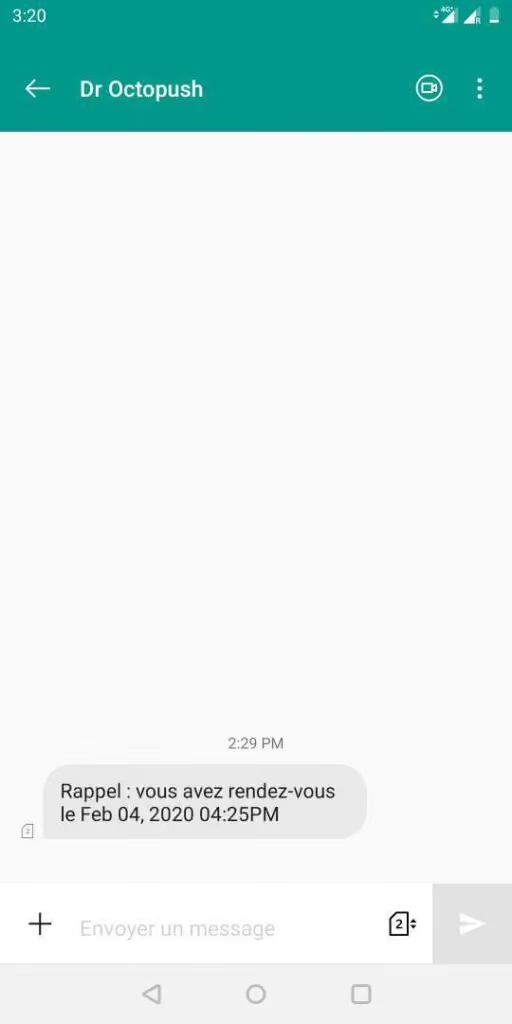
You will be prompted to test the Zap by sending a test SMS with the information from the test event we mentioned in step 4.3. Here is what it should look like.
Here is what the SMS will look like for your clients: